How to Set a Reminder on iPhone
Something just came up that you need to do later: call the garage, renew the parking permit, take the bins out. You want your phone to bring it back at the right moment, and you would rather not dig through settings to make that happen.
 Remi is an iPhone appPoint your iPhone camera at the code to install it.
or text me the link
The short answer
Open the built-in Reminders app, tap New Reminder, type what you need to do, then tap the Date and Time button and pick when. That is all a basic reminder needs. If your hands are busy, say it to Siri instead: "Remind me tomorrow at 3 p.m. to call Tara." On iOS 18 and later you can also add a reminder straight from the Calendar app, and on iOS 26 and later from Control Center or the Action button.
The built-in tools are good at reminders with a clear day and time. Where they get awkward is the task that belongs to "sometime next month" or "one day": you either invent a date or leave it undated, where it does not come back to you unless you tie it to a place. That case is covered in reminders when you don't know the day.
The steps below follow Apple's current support article for the Reminders app, published 9 October 2026. At the time of writing the newest iOS version is iOS 27.2, released on 26 October 2026.
Way 1: The Reminders app
- Open Reminders.
- Tap New Reminder and type the title, for example "Renew parking permit".
- Tap the Date and Time button. Pick Today, Tomorrow, This Weekend or Next Week, or tap Custom to choose any day and time.
- Optional: tap Edit Details to add notes, a link, a priority, or to put the reminder in a different list.
The Tag, Flag and Photos buttons in the same row let you tag the reminder, flag it as important or attach a picture, for example a photo of the parking sign you need to check.
A date without a time fires at 9:00 AM
If you give a reminder a day but no time, it counts as all day, and the notification arrives at 9:00 AM by default. So a reminder for "Friday" made on Thursday evening shows up on Friday morning, not at the moment you created it a day earlier. To change that default, go to Settings > Apps > Reminders and tap the time under All-Day Reminders. If the exact hour matters, give the reminder its own time instead.
Remind me when I get somewhere
Some tasks belong to a place, not a time: "buy stamps when I'm in town", "water the plants when I get home".
- In the new reminder, tap the Location button.
- Choose one of the suggested places, or tap Custom to set your own.
- If you chose Custom, pick whether you want the alert when you arrive or when you leave, and set the size of the area around the place.
Location reminders only work with Location Services turned on: Settings > Privacy & Security > Location Services.
Way 2: Ask Siri
Ask Siri for the reminder with its time in one sentence. Apple's own example is "Remind me tomorrow at 3:00 p.m. to call Tara." This works on the iPhone and on Apple Watch.
Siri can also set place reminders such as "Remind me to call Mum when I get home". For "home" and "work" to mean anything, your addresses have to be on your own contact card: open Contacts, tap My Card, tap Edit, add the address, then tap Done.
For a reminder at a set moment, Siri needs a date or a time. For vaguer things you want to capture by voice, like "early November", see adding reminders by voice.
Way 3: From the Calendar app (iOS 18 and later)
If you are already looking at your week in Calendar, you do not have to switch apps:
- In Calendar, tap the + button at the top.
- Tap Reminder.
- Enter a title and the details you want, such as the date and time.
- Tap Done.
Scheduled reminders also show in your calendar. To find them there, tap Calendars at the bottom of the screen and select Scheduled Reminders.
Way 4: Control Center or the Action button (iOS 26 and later)
Since iOS 26, Apple lets you create reminders quickly from Control Center or, on iPhone models that have one, from the Action button. Neither works out of the box: first add the Reminders control to Control Center, or set the Action button to Reminders. Once that is done, this is the fastest route when a thought arrives mid task. The rest works the same as in Way 1.
Make sure the reminder actually reaches you
A reminder is delivered as a notification. Setting it up is half the job; the other half is making sure the iPhone lets it through.
- Notifications on. Go to Settings > Notifications, tap Reminders under Notification Style, and choose how alerts appear.
- Silent mode. If the iPhone is silenced or the volume is all the way down, notification sounds do not play, so a reminder can arrive without you noticing it.
If a reminder has to make a noise no matter what, iOS 26.2 added Urgent reminders. Tap the reminder, tap the Info button and turn on Urgent under Date & Time; if no date or time was set, it defaults to the next hour. An Urgent reminder rings as an alarm even with the phone silenced or a Focus on. It needs iCloud Reminders, the Alarms permission under Settings > Apps > Reminders, and it only rings on the device that Find My uses as your location. When to use a reminder and when an alarm is explained in reminder or alarm, and if a reminder you set did not go off, work through why iPhone reminders stop working.
Way 5: When you don't know the day
Every method above wants a day or a place, or saves the reminder with no date at all. That fits "dentist, Tuesday 10:30". It fits "book the dentist, sometime mid month" badly: pick a day you made up and the reminder goes overdue the next morning, leave the date off and, unless you add a location, it sits in a list with no alert. The built-in Reminders app does let you save a reminder without a date, and reminders without a date explains what happens to them.
Remi is a reminder app built for the in between. Every reminder has a When: an exact date, or Early, Mid, Late or Anytime in a month.
- Tap the + button and type the reminder.
- In When, choose Early (by default the 1st to the 10th), Mid (11th to 20th), Late (21st to the end) or Anytime, then the month and year. Or choose Exact and tap a day on the calendar.
- For an exact date, turn on Notify Me if you want a notification. Remi then shows the time it will arrive.
- No idea when at all? Switch on Don't have a concrete date in mind? and it goes into the Someday section of your list.
- Tap Add.
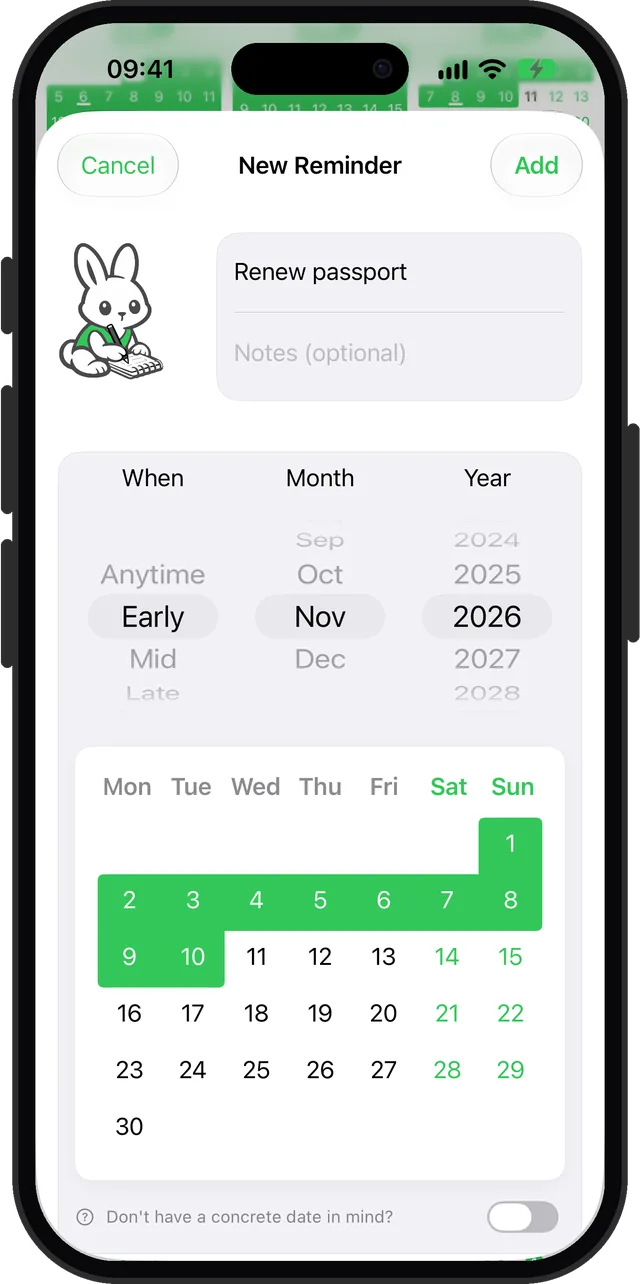
Two honest details. Remi reminders do not each get their own time: every reminder notification arrives at one time of day you pick in Remi's Settings, either on the day or one day before. And only exact date reminders send a notification. Early, Mid, Late and Anytime reminders show in your list, in the Today tab and in the Month and Yearly views for their whole stretch, so you see them without being pinged. More on that in reminders for sometime next month. Remi is free and runs on iOS 17.6 or later; repeating reminders are part of Premium.
Which way to use
| Your situation | Use | See |
|---|---|---|
| You know the day and time | Reminders app | Way 1 |
| Your hands are full | Siri | Way 2 |
| You are planning your week | Calendar | Way 3 |
| The thought just arrived | Control Center | Way 4 |
| It must ring on Silent | Urgent reminder | Alerts |
| You only know roughly when | Remi | Way 5 |
Ticking off, deleting and getting one back
To mark a reminder as done, tap the empty circle next to it. To delete one without completing it, swipe left on it and tap Delete. If you deleted the wrong one, the Reminders app keeps deleted reminders for 30 days before they are gone for good, so you can still recover it.
Why is the Reminders app on my phone?
Reminders is one of Apple's built-in apps, so it comes with the iPhone. If you never use it, you can delete it: since iOS 14 it is one of the built-in apps Apple lets you remove. Press and hold its icon, choose to remove the app, and confirm. Apple warns that deleting a built-in app also deletes its related user data and configuration files, so move anything you need first.
To get it back, open the App Store, search for Reminders using that exact name, and tap the download button. New Reminders features arrive with iOS updates: the time zone setting and the Control Center and Action button shortcuts came with iOS 26, and Urgent reminders with iOS 26.2. So if a step in this guide does not match your screen, check which iOS version your iPhone is on.
Sources
- Apple Support: Use Reminders on your iPhone, iPad, or iPod touch (New Reminder, Date and Time options, Location, 9:00 AM default, Siri, Calendar on iOS 18, Control Center and Action button on iOS 26, Urgent on iOS 26.2, completing and deleting, 30 days in Recently Deleted)
- Apple Support: Delete built-in Apple apps (Reminders deletable on iOS 14 or later, data deleted, redownload from the App Store)
- Apple Support: Use notifications on your iPhone or iPad (Settings > Notifications, sounds do not play when silenced)
- Apple Support: Apple security releases (iOS 27.2, 26 October 2026)
- Apple: iOS 27
Questions
How do I set a reminder on my iPhone?
Open the Reminders app, tap New Reminder, type the title, then tap the Date and Time button and choose Today, Tomorrow, This Weekend, Next Week or Custom. You can also ask Siri, for example "Remind me tomorrow at 3 p.m. to call Tara", or add one from the Calendar app on iOS 18 and later.
Why did my reminder go off at 9 AM?
A reminder with a date but no time is treated as all day, and its notification appears at 9:00 AM by default. You can change that time in Settings > Apps > Reminders under All-Day Reminders, or give the reminder its own time.
Can I set a reminder for when I arrive somewhere?
Yes. In the reminder, tap the Location button and pick one of the suggested places, or tap Custom to set your own place and choose whether to be notified when you arrive or when you leave. Location Services must be on in Settings > Privacy & Security > Location Services.
Why is the Reminders app on my phone?
Reminders is a built-in Apple app that comes with the iPhone. Since iOS 14 you can delete it, but that also deletes its related user data. To get it back, search the App Store for Reminders and download it again.
How do I update the Reminders app on iPhone?
New Reminders features come with iOS updates rather than a separate app update: Apple lists the Control Center and Action button shortcuts and the time zone setting as iOS 26 features and Urgent reminders as an iOS 26.2 feature. Updating the iPhone to the latest iOS, currently iOS 27.2, gets you the newest version.
Can I set a reminder without picking an exact day?
In the built-in Reminders app you can leave the date off, but unless you add a location, the reminder has no alert. Remi lets you pick Early, Mid or Late in a month, or Anytime that month, so the reminder shows for that whole stretch instead of going overdue on a day you made up.
For the reminders that don't have a day yet
Get Remi on the App StoreUpdated 2026-11-04. Written by Emils Ozols, who makes Remi.